Manage Libro · 8 min
Manage connected AI apps
Connect ChatGPT or Claude to Libro with remote MCP, review permissions, test the connection, and revoke access.
Installation
Connect your AI client
Choose your client, follow the numbered steps, and complete Libro's OAuth approval in your browser.
- Open ChatGPT, open Settings → Plugins → Developer mode, and enable Developer mode.
- Go to Plugins → +. This opens New Plugin.
- Enter these plugin details. The icon and advanced OAuth settings are optional.
- Name
- Libro
- Description
- Libro app MCP
- Connection
- Server URL
- Server URL
https://account.libro-app.com/api/mcp- Authentication
- OAuth
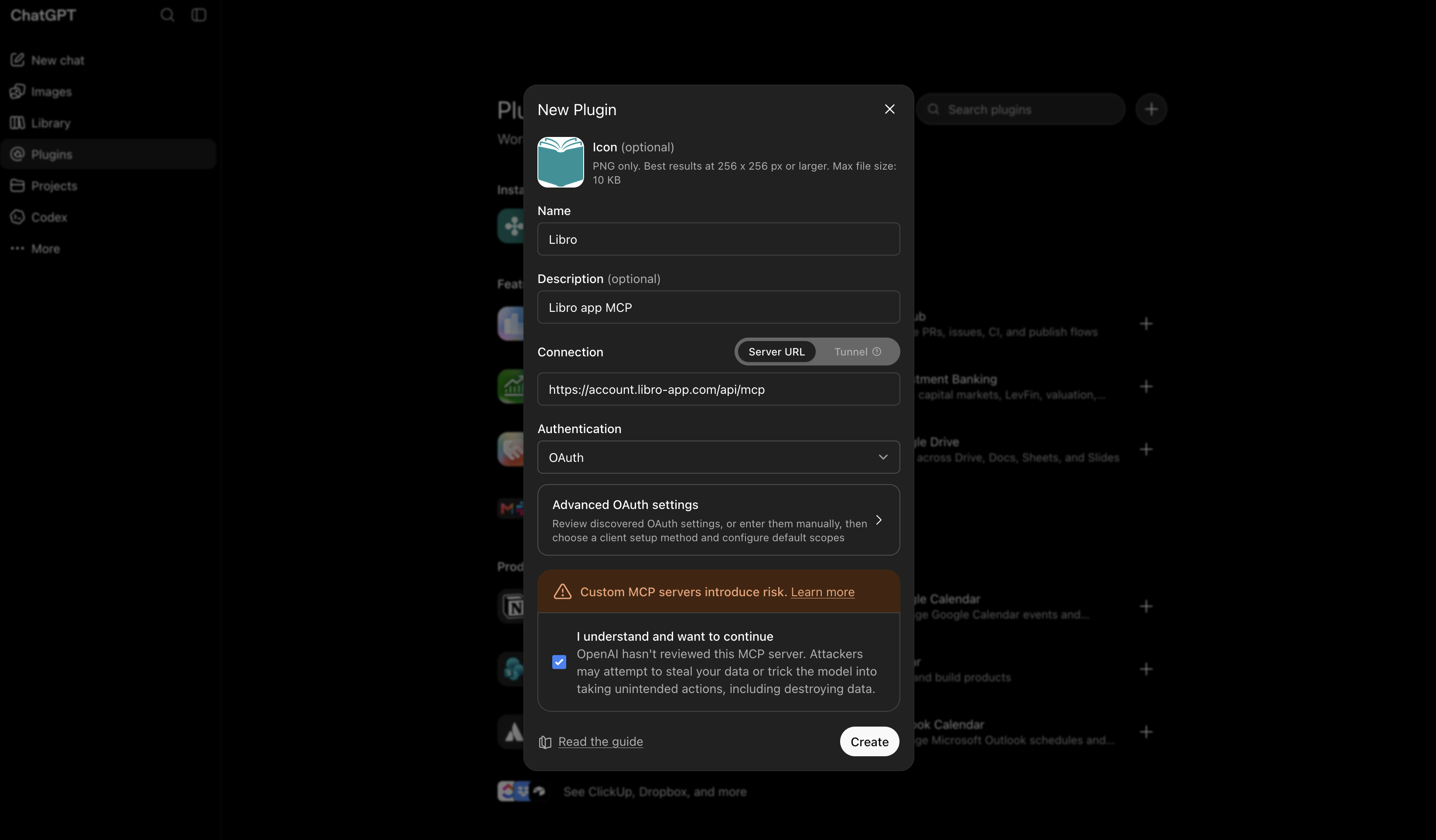
- Review the custom MCP server warning, select I understand and want to continue, then choose Create.
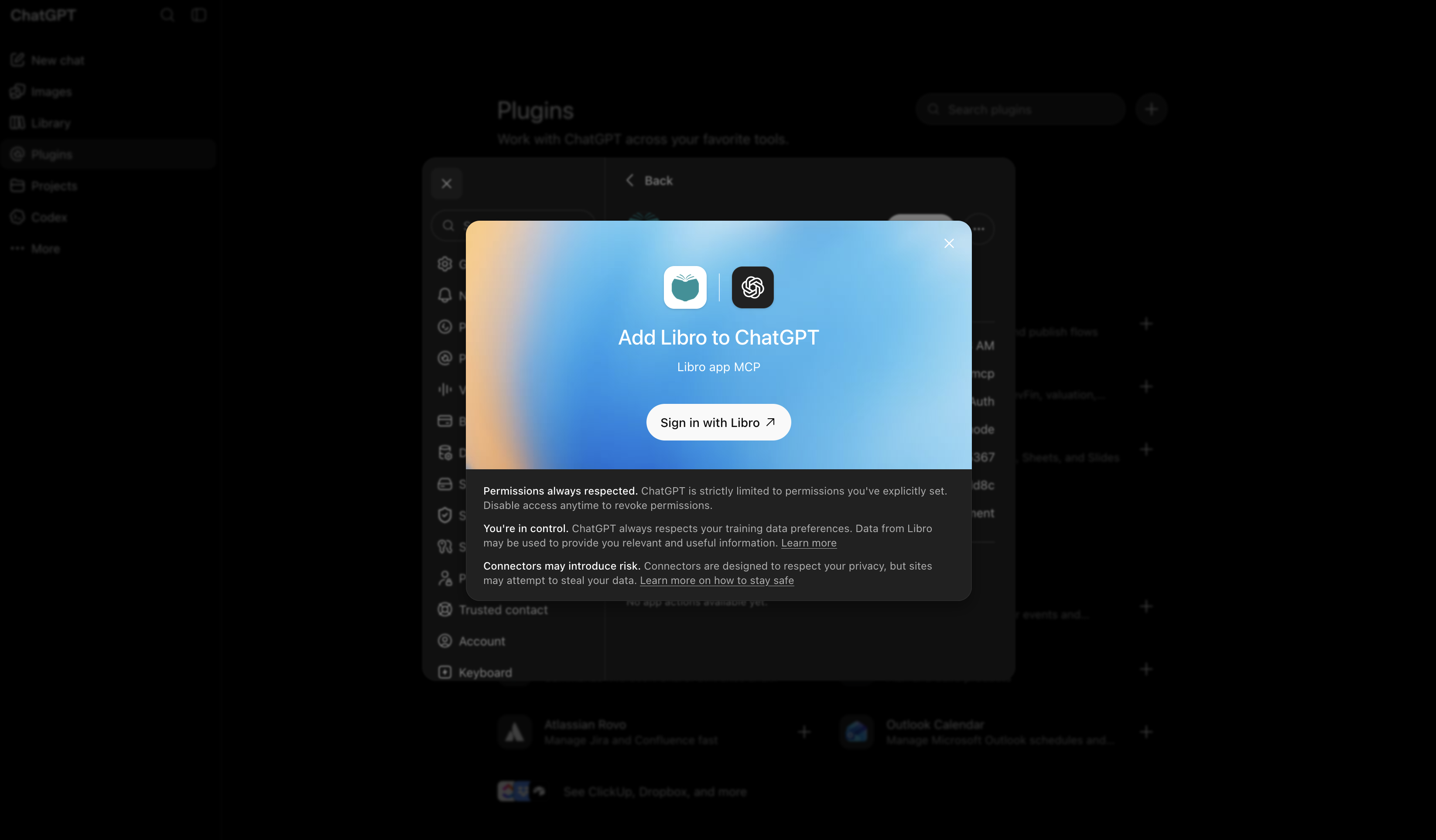
- On Add Libro to ChatGPT, choose Sign in with Libro. ChatGPT opens Libro's OAuth authorization page.
- Sign in to Libro, choose the companies and permissions you want to share, review the disclosure, and approve access.
- Return to ChatGPT and enable Libro from the plugin menu. Start with the read-only company-list check below.
Libro exposes a remote Model Context Protocol (MCP) server that lets a compatible AI client work with companies you explicitly authorize. The client uses OAuth, so you sign in to Libro in your browser and never paste a Libro password or access token into a chat.
Before you connect
Use the hosted Libro MCP endpoint:
https://account.libro-app.com/api/mcpMCP access requires an eligible standard company on the Pro or Max plan. Free and Demo companies cannot be selected. If a company is shared with you, eligibility follows the company owner’s plan and your current Libro role still controls whether you can make changes.
The AI client must support a public remote MCP server with OAuth. Workspace plans may also require an owner or admin to enable custom apps or connectors.
Choose Libro permissions
Libro asks for at least one OAuth permission and one eligible company. Start with read access, then reconnect later if a real workflow needs more.
| Permission | What it allows |
|---|---|
accounting:read | Read the selected company’s context, accounts, ledgers, journals, cash books, and reports. |
master-data:write | Prepare and confirm new customers, suppliers, and cooperative members. |
drafts:write | Prepare and confirm draft journals, cash receipts, and cash disbursements. |
transactions:post | Separately prepare and confirm posting or unposting a supported transaction. |
Write tools use a two-step prepare-and-confirm flow. The preview token expires after ten minutes and can be used only once. Libro’s MCP server cannot finalize, cancel, delete, administer companies, change settings, access billing, or run backups.
Verify the connection safely
Start with a read-only request:
Using Libro, list only the companies I authorized. Then tell me the company name,
currency, bookkeeping method, and my access role. Do not create or change anything.
Confirm that the response includes only the companies selected during OAuth. Next, ask for a Trial Balance or a short list of accounts and compare it with Libro. If the client cannot see tools, confirm that the MCP endpoint is exact, the app is enabled for the conversation, the authorization finished, and the selected company is still eligible.
Review or revoke access
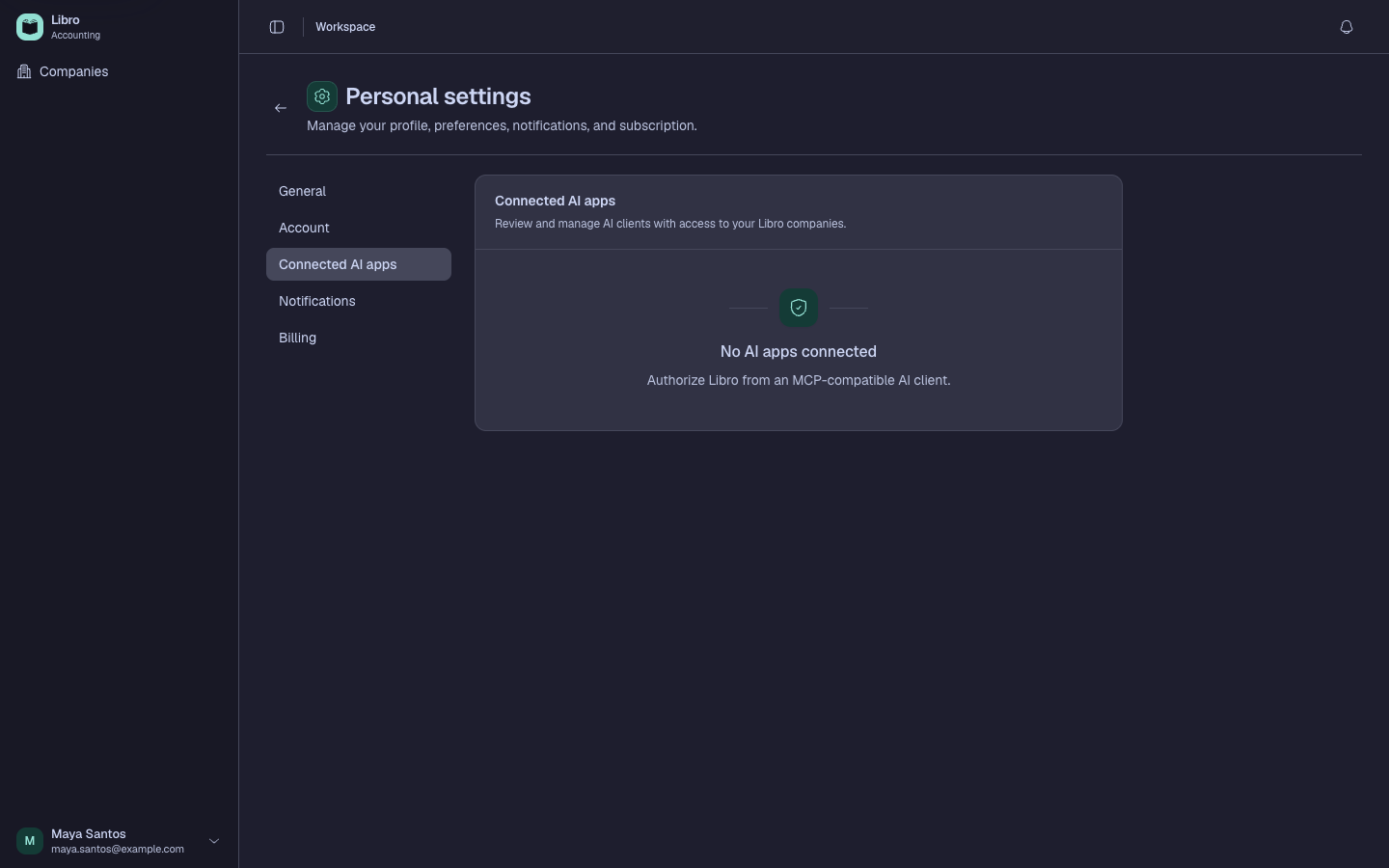
Open Personal settings → Connected AI apps in Libro. Each row shows the client and its last use. Choose Manage to review its companies and permissions. Choose Revoke when the connection is no longer needed, a device or client is untrusted, or the scope is broader than intended.
Revoking in Libro stops future calls and refreshes for that grant. It does not undo records already created. Also remove or disconnect Libro in ChatGPT or Claude so the stale client entry is no longer offered. To add a new company or permission later, reconnect and complete OAuth again; existing grants do not expand automatically.